Creating a New Reading, Writing, or Listening Test
Use Create New in the Admin sidebar to open the Test Creator Studio.
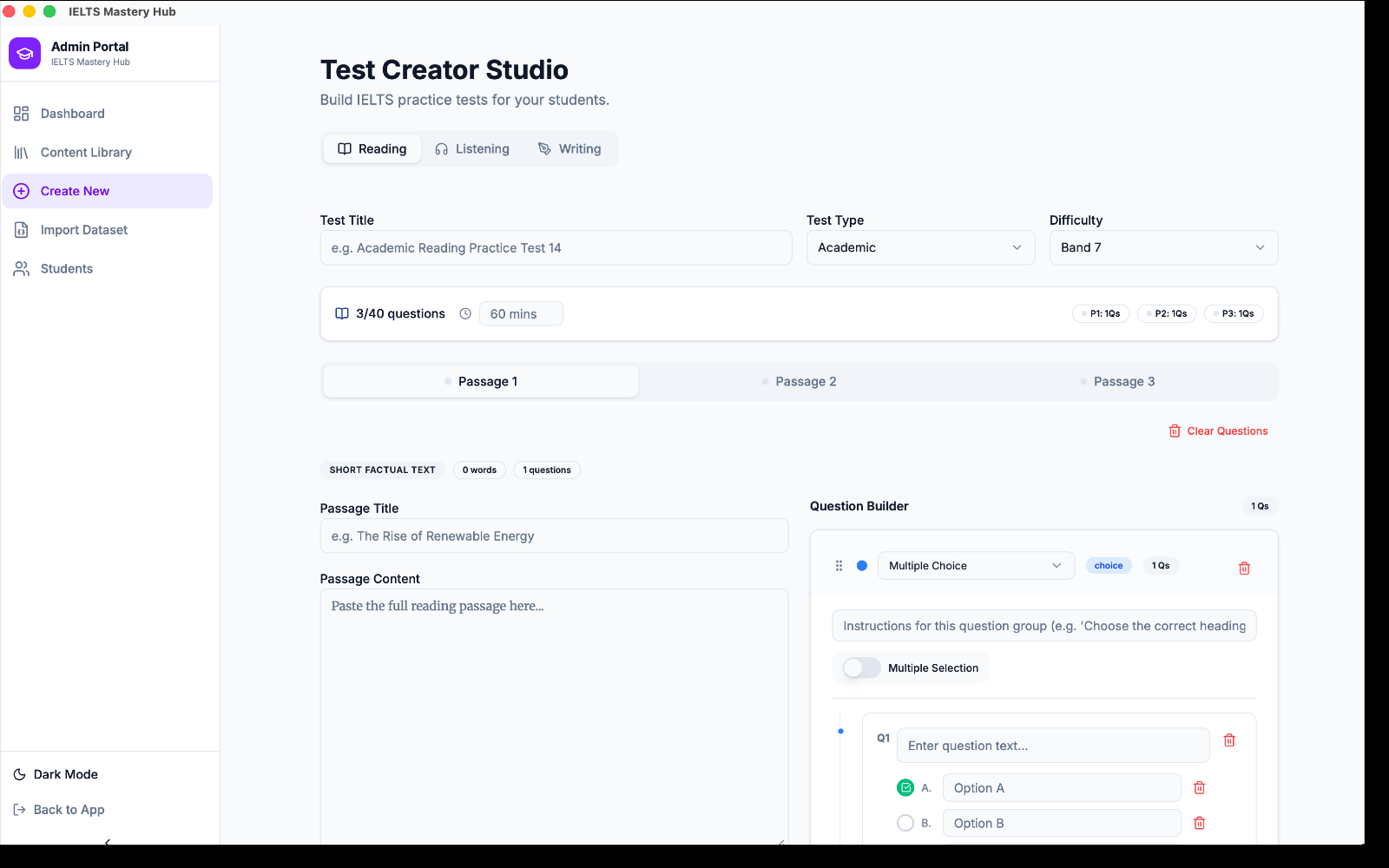
The studio has three main tabs:
- Reading
- Listening
- Writing
No matter which tab you choose, you will start by filling in the main test details.
Step 1: Enter the basic test details
At the top of the screen, add the test's core information:
- Title
- Difficulty band
- Duration
These details help you recognise the test later in the Content Library and help students understand what to expect.
Step 2: Build a Reading test
Reading tests are built from:
- one test
- one or more passages
- question groups inside each passage
- individual questions inside each group
For each passage, you can add:
- a passage title
- the full passage text
- one or more question groups
Inside each question group, you can build the questions students will answer.
Step 3: Build a Writing test
Writing tests use two tasks:
- Task 1
- Task 2
For Writing, you can set:
- the prompt text for each task
- minimum word count
- maximum word count
- suggested time
For Task 1, you can also upload an optional chart or graph image for students to refer to while writing.
Step 4: Build a Listening test
Listening tests can include up to 4 sections.
Each section can have:
- a section title
- an audio upload
- a transcript
- time-synced question groups and questions
This lets you prepare the full listening flow section by section.
Step 5: Preview the student view
Before you save or publish, click Preview.
This shows you the test in a student-style view so you can quickly check:
- layout
- wording
- passage or section order
- prompts and question setup
Preview is especially useful for catching missing text, awkward instructions, or the wrong task details before students see the test.
Step 6: Save as Draft or Publish
When you are ready, choose one of these options:
| Option | What happens |
|---|---|
| Save as Draft | Keeps the test as work in progress |
| Publish | Makes the test available in the Practice Library |
:::note What Draft and Published mean A Draft stays tied to the app identity that created it, so other people using the install will not see it in the Practice Library. A Published test appears in the Practice Library for everyone using this install. :::
A simple creation flow
- Click Create New.
- Choose Reading, Writing, or Listening.
- Enter the title, band, and duration.
- Add passages, tasks, or sections.
- Click Preview.
- Save as Draft or Publish.
:::tip Start with a draft If you are building a longer test, it is usually best to save a draft first, review it, then publish when you are happy with the final version. :::