Importing Tests from a JSON File
Use Import Dataset when you already have a test prepared as a file and want to bring it into the app.
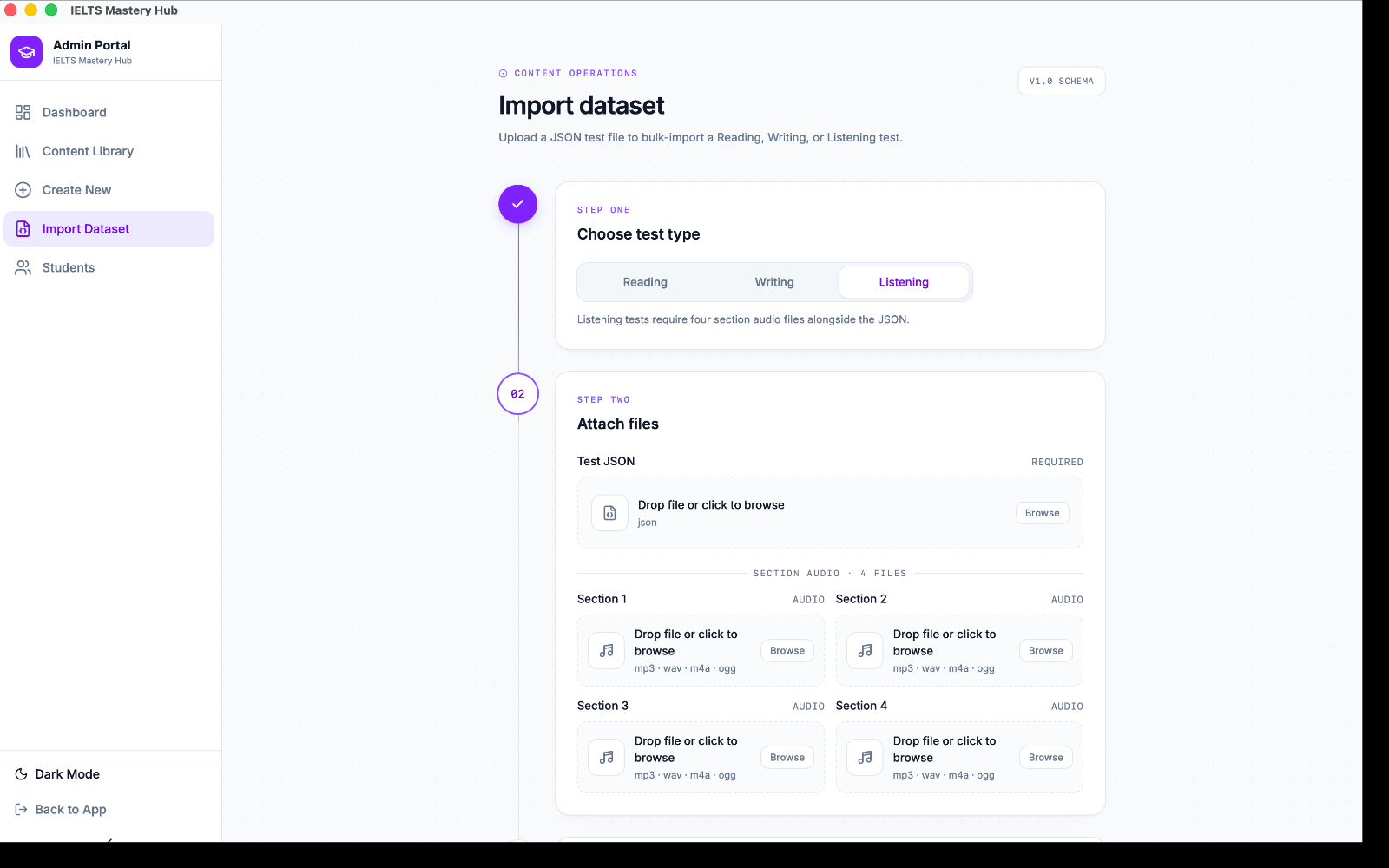
The import screen is a simple 3-step wizard.
Step 1: Choose test type
Start by choosing the kind of test you are importing:
- Reading
- Writing
- Listening
This matters because the app checks the file differently for each test type.
Step 2: Attach the required files
Every import needs a JSON test file.
In plain language, that JSON should include the full test content in the right shape for the test type you picked. For example:
- a Reading import should include the test details, passages, question groups, and questions
- a Writing import should include the test details and writing tasks
- a Listening import should include the test details, sections, question groups, and questions
Extra requirement for Listening
Listening imports also need exactly 4 audio files — one for each section.
Use one audio file per section, and make sure every section has a file attached before you validate the import.
:::tip Audio format choice For Listening imports, MP3 and WAV are confirmed supported formats and are the safest choices to use. :::
Step 3: Validate and review
Click Validate before you import.
The validation step shows a summary preview, including:
- the test title
- whether the file is Reading, Writing, or Listening
- how many passages, sections, or tasks were found
- question group count where relevant
- question count where relevant
- a warning if a test with the same title already exists
This gives you a chance to catch mistakes before anything is added to the library.
Finish the import
If the preview looks correct, click Import.
After a successful import, the test is added to your Content Library as a Draft.
That means you can open it, review it, and publish it later when ready.
Common import problems
| Problem | What to check first |
|---|---|
| The file will not validate | Make sure it is valid JSON |
| The file type seems wrong | Make sure the JSON structure matches the test type you chose |
| Listening import fails | Make sure all 4 section audio files are attached |
| A section is still missing | Make sure each Listening section has its own file |
:::warning A common Listening mistake If you choose Listening, the import will fail if even one of the four section audio files is missing. :::
Recommended import flow
- Open Import Dataset.
- Choose Reading, Writing, or Listening.
- Attach the JSON file.
- If it is a Listening test, attach all 4 section audio files.
- Click Validate.
- Review the preview summary.
- Click Import.