Managing Your Test Content Library
The Content Library is your main place for finding, reviewing, and managing tests you have already created or imported.
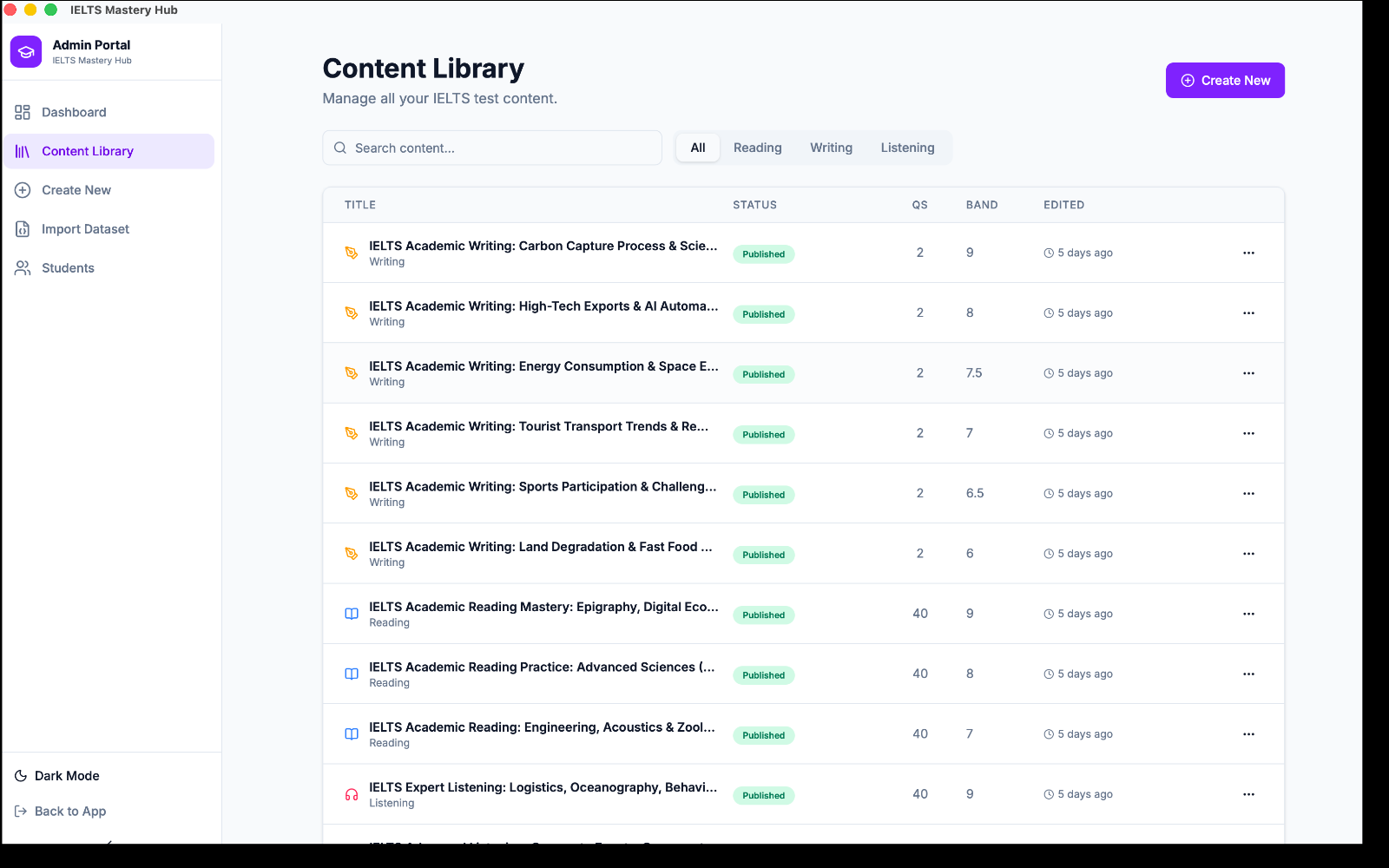
What you can do on this page
You can use the Content Library to:
- search for a test by title
- switch between All, Reading, Writing, and Listening
- check whether a test is a Draft or Published item
- reopen a test for editing
- export a test as a ZIP file
- permanently delete a test
Understanding the table
Each row shows key details about one test.
| Column | What it shows |
|---|---|
| Title | The test name and module |
| Status | Whether the test is Draft or Published |
| Qs | The question count |
| Band | The difficulty band |
| Edited | When it was last updated |
Finding the right test
Use the search box to narrow the list by title.
Use the module tabs to switch between:
- All
- Reading
- Writing
- Listening
:::note About status The current library clearly shows Draft and Published in the Status column, so you can quickly tell what is live and what is still in progress. :::
Using the 3-dot menu
At the end of each row, click the 3-dot menu.
The actions appear in this order:
- Edit
- Export
- Delete
Edit
Edit opens the Test Creator Studio again with that test already filled in.
Use this when you want to:
- correct a typo
- update questions
- change timings
- continue working on a draft
Export
Export downloads the test as a .zip file.
This is useful for:
- backups
- sharing with another admin
- moving content to another install
For a full walkthrough, see Exporting a Test as a ZIP File.
Delete
Delete opens a confirmation message first.
If you confirm, the test is permanently removed.
:::warning Delete is permanent Once a test is deleted, it is removed from the library. Make sure you really do not need it anymore before confirming. :::
A typical content management flow
- Open Content Library.
- Search for the test or switch to the right module tab.
- Check the row details.
- Open the 3-dot menu.
- Choose Edit, Export, or Delete.