Finding and Starting a Practice Test
The Practice Library is the main place to choose what you want to work on next. You can browse all available tests, narrow the list by module, and jump back into unfinished work.
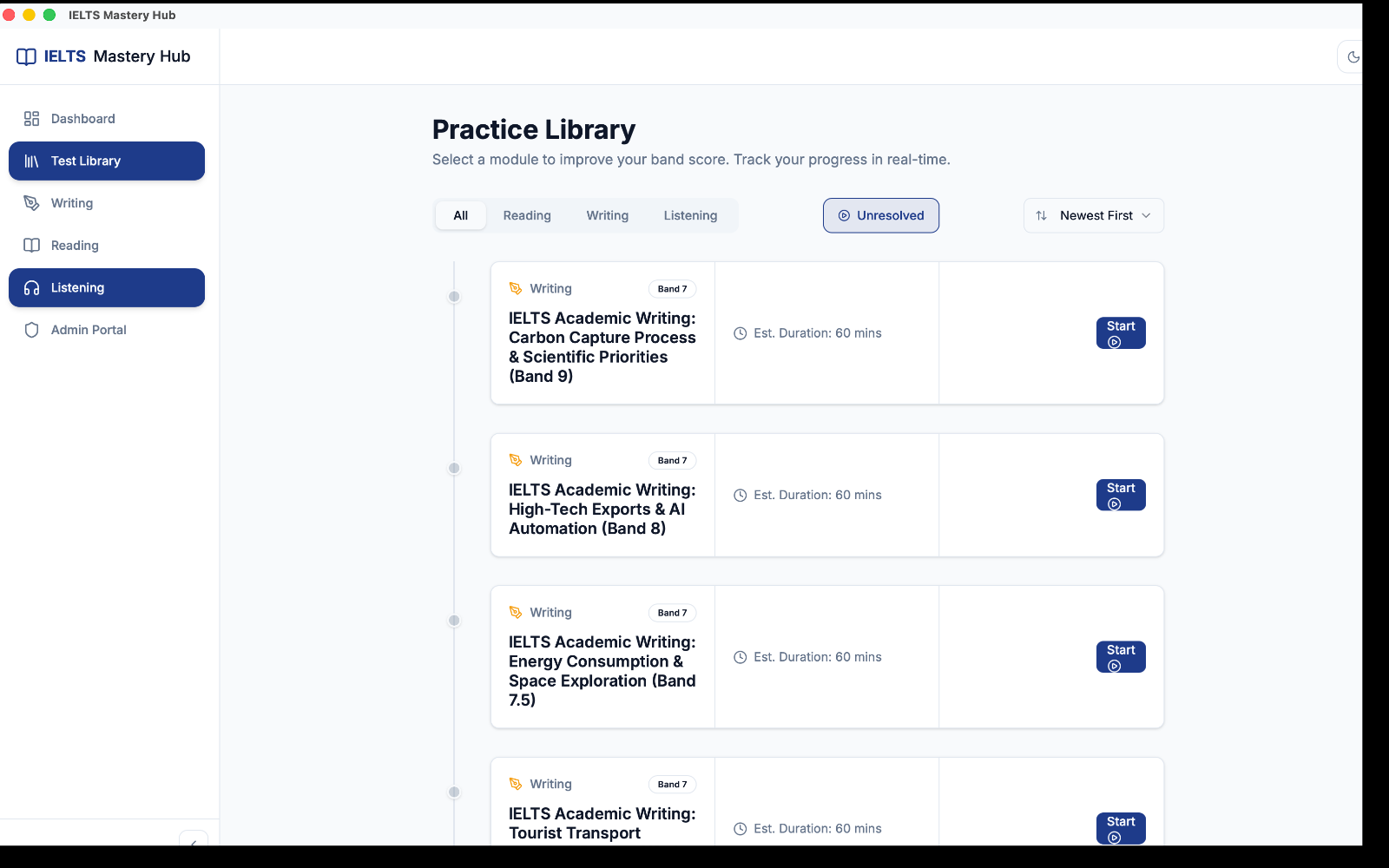
What you'll see on this screen
| Area | What it does |
|---|---|
| All / Reading / Writing / Listening tabs | Show all tests together, or only one module at a time. |
| Unresolved filter | Hides completed tests so you can focus on tests you have not finished yet. |
| Newest First sort | Changes the order of the test cards. |
| Test cards | Show the test title, module, band level, estimated duration, and your current status. |
What each test card means
| Status | What it means | What to click |
|---|---|---|
| Not Started | You have not opened this test yet. | Start |
| In Progress | You already began this test and your progress was saved. | Continue to resume where you left off |
| Completed | You already finished this test. Your band score is shown on the card. | Review to look back at your result |
If you want to focus on unfinished work, turn on Unresolved. This is especially useful when your library starts to fill up.
How to start a test
- Open Test Library from the left sidebar.
- Choose a tab: All, Reading, Writing, or Listening.
- If needed, turn on Unresolved or change the sort order.
- Click Start on the test you want.
- The app opens the correct practice screen for that module.
- On the start screen, click Start Now to begin the timed test.
How resuming works
If a test is already in progress, the card changes from Start to Continue.
When you open it again:
- your saved session is loaded
- your previous answers come back
- the test timer continues from where that session left off
This means you do not need to restart just because you closed the app or left the test screen.
Starting a new attempt after finishing
After a completed test, the card shows Review instead of Start. If you want a fresh attempt, open the completed test and use the retry option inside that module's result screen.
Good to know
You can only work on one active test at a time. If another test is already in progress, the app asks you to go back and finish or resume that test first.